Geoff’s Photo Doodler

The notes below should help get you started using my “Photo Doodler” program. First there is some background on what got me started on this project, then I give some examples, and then some brief instructions. Programming credits are at the end.

Generative Art

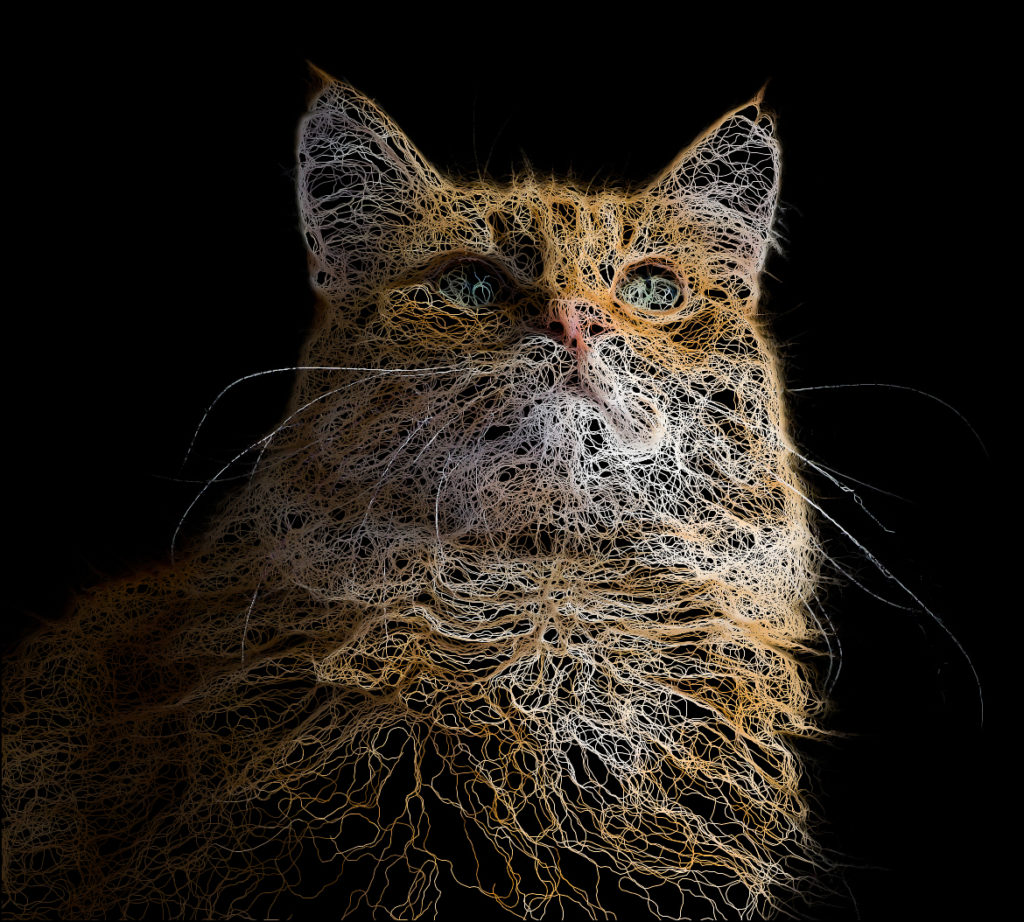
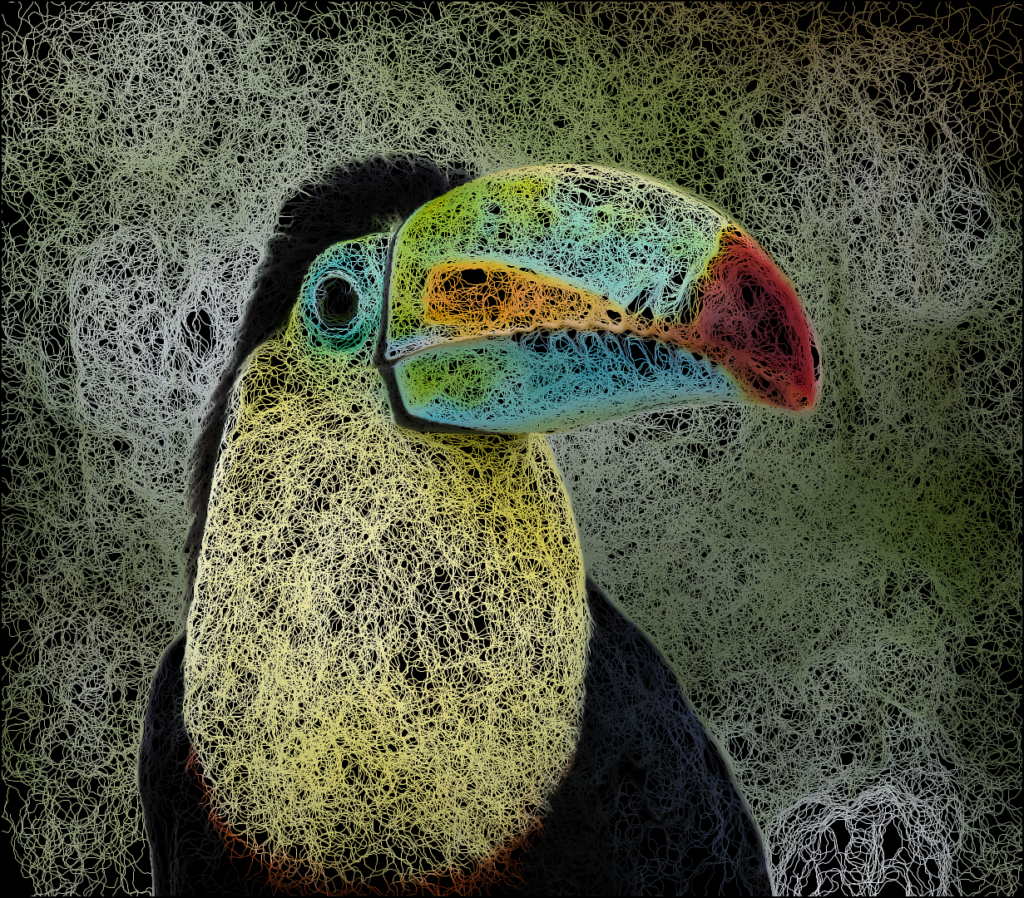
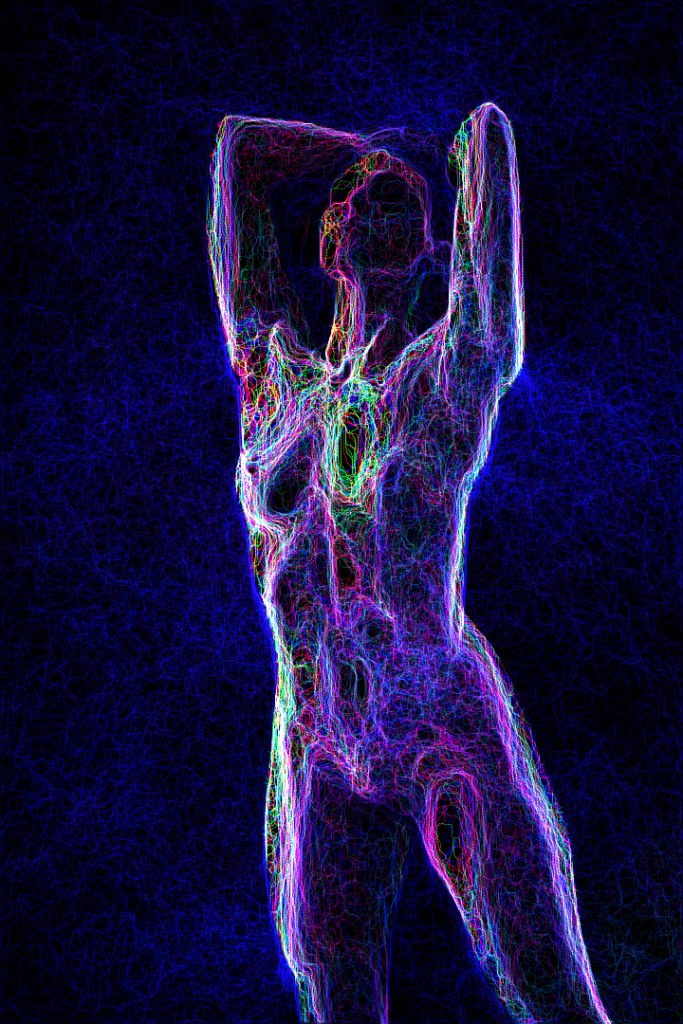
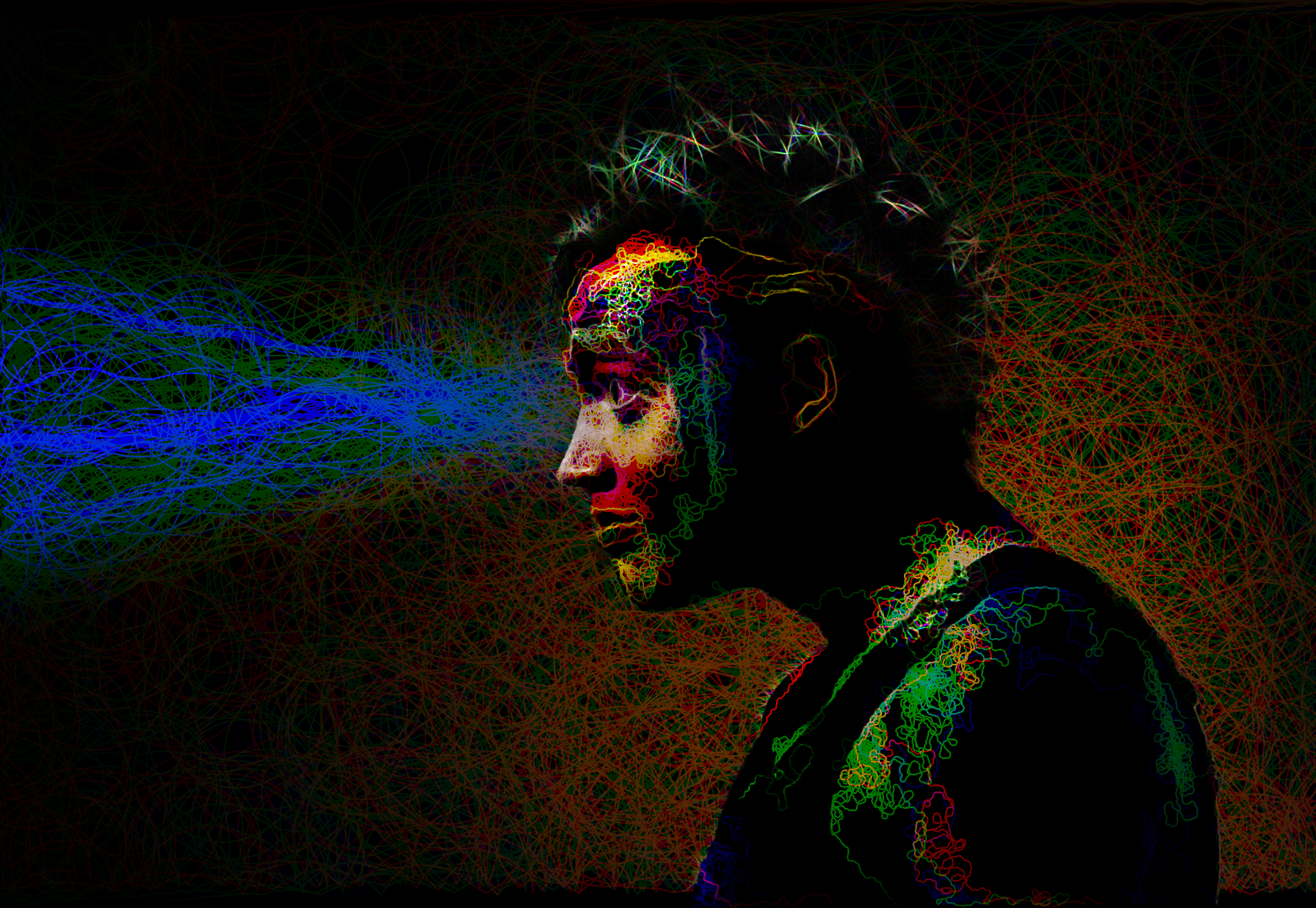
Generative Art or Code Art or Algorithmic Art generates art using autonomous systems such as computer programs, typically using random number generation to produce unique outputs. I’ve written more about generative art HERE. The program I have written redraws an image you provide using algorithms with randomly directed pens that doodle over the image (or draw randomly placed circles) according to adjustable parameters to produce (sometimes) interesting results.

Geoff’s Image Doodler

Some Examples

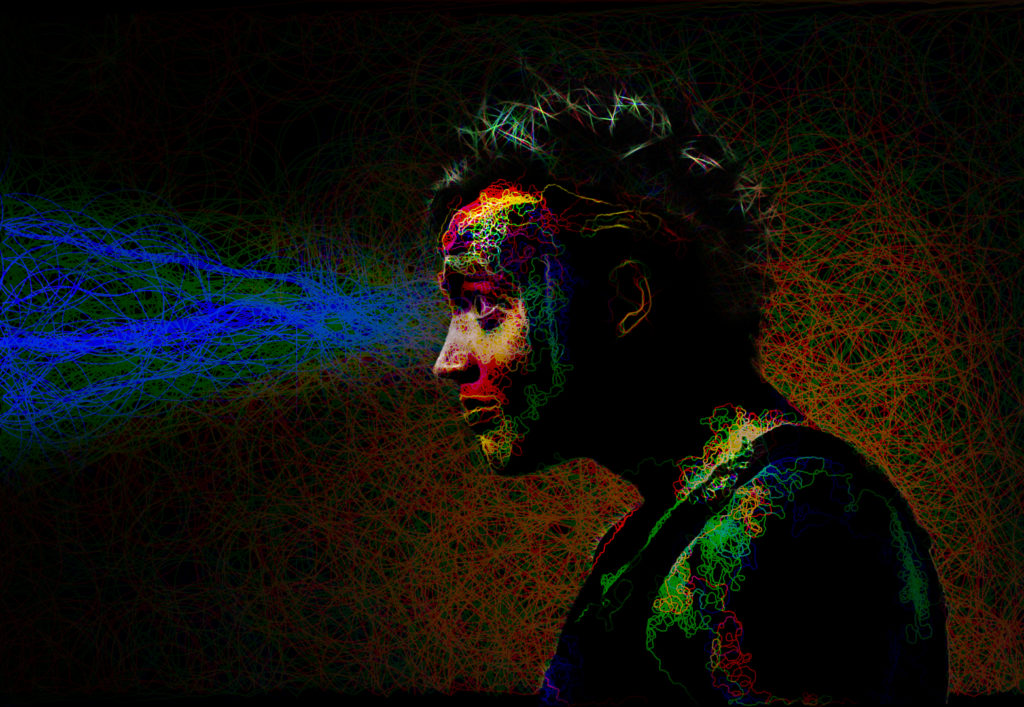
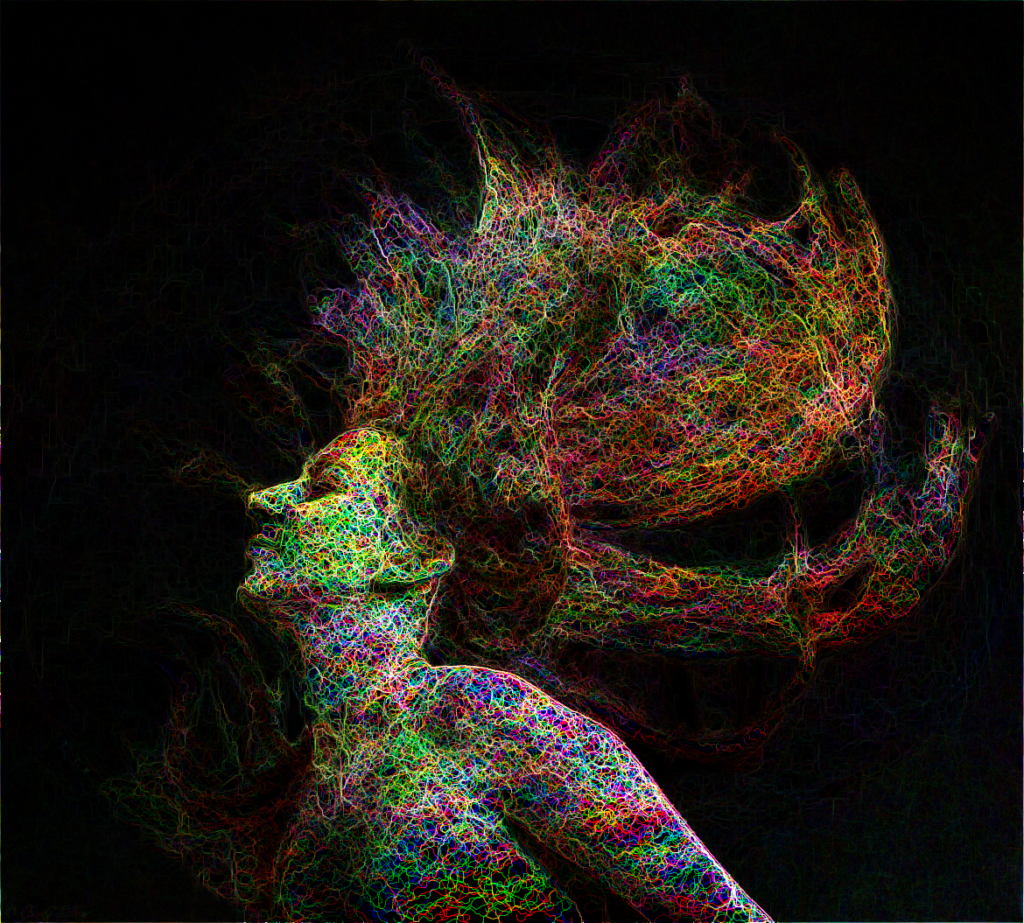
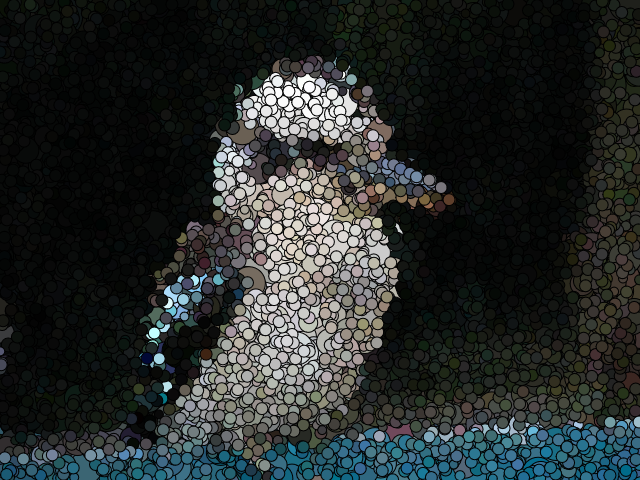
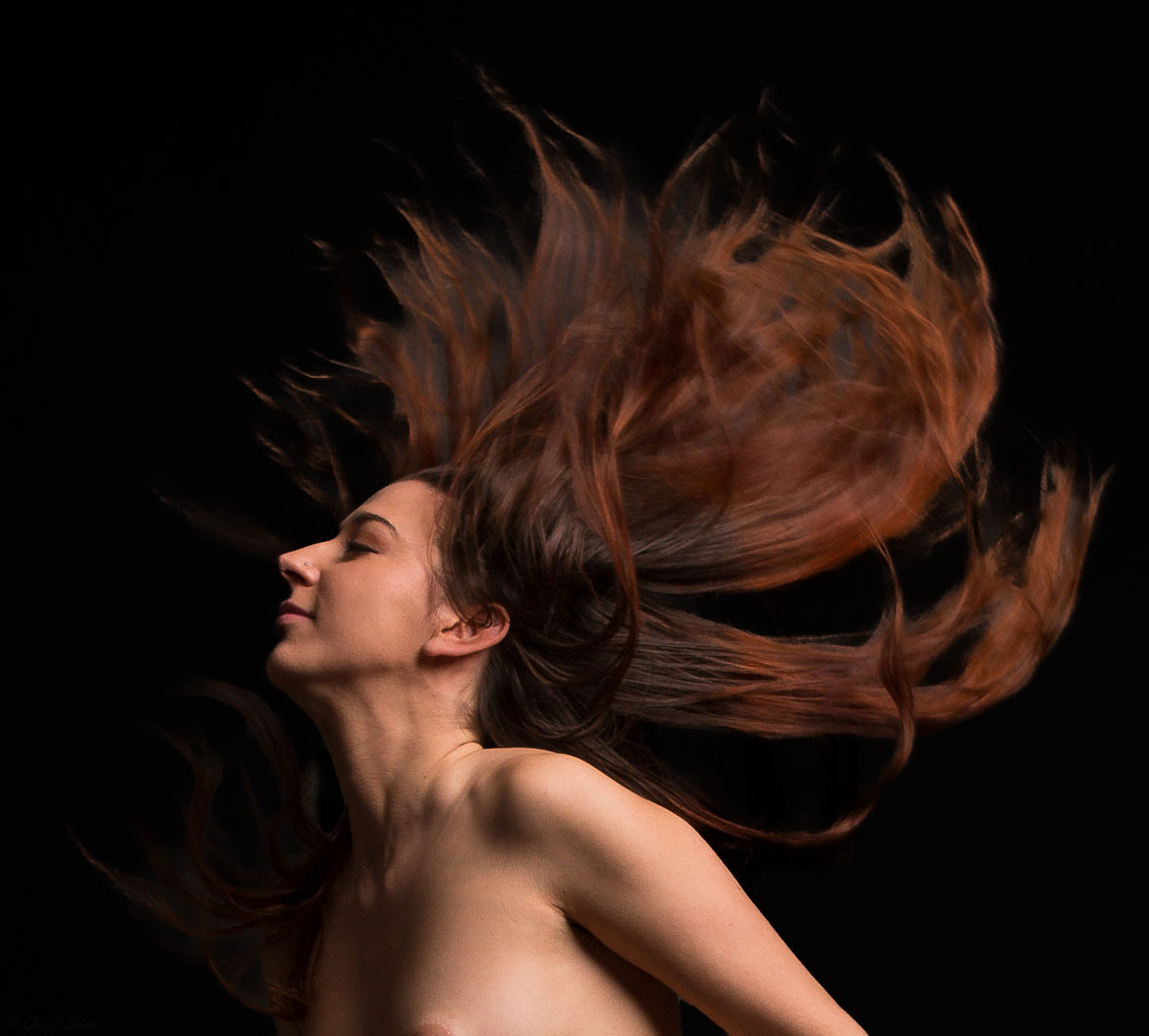
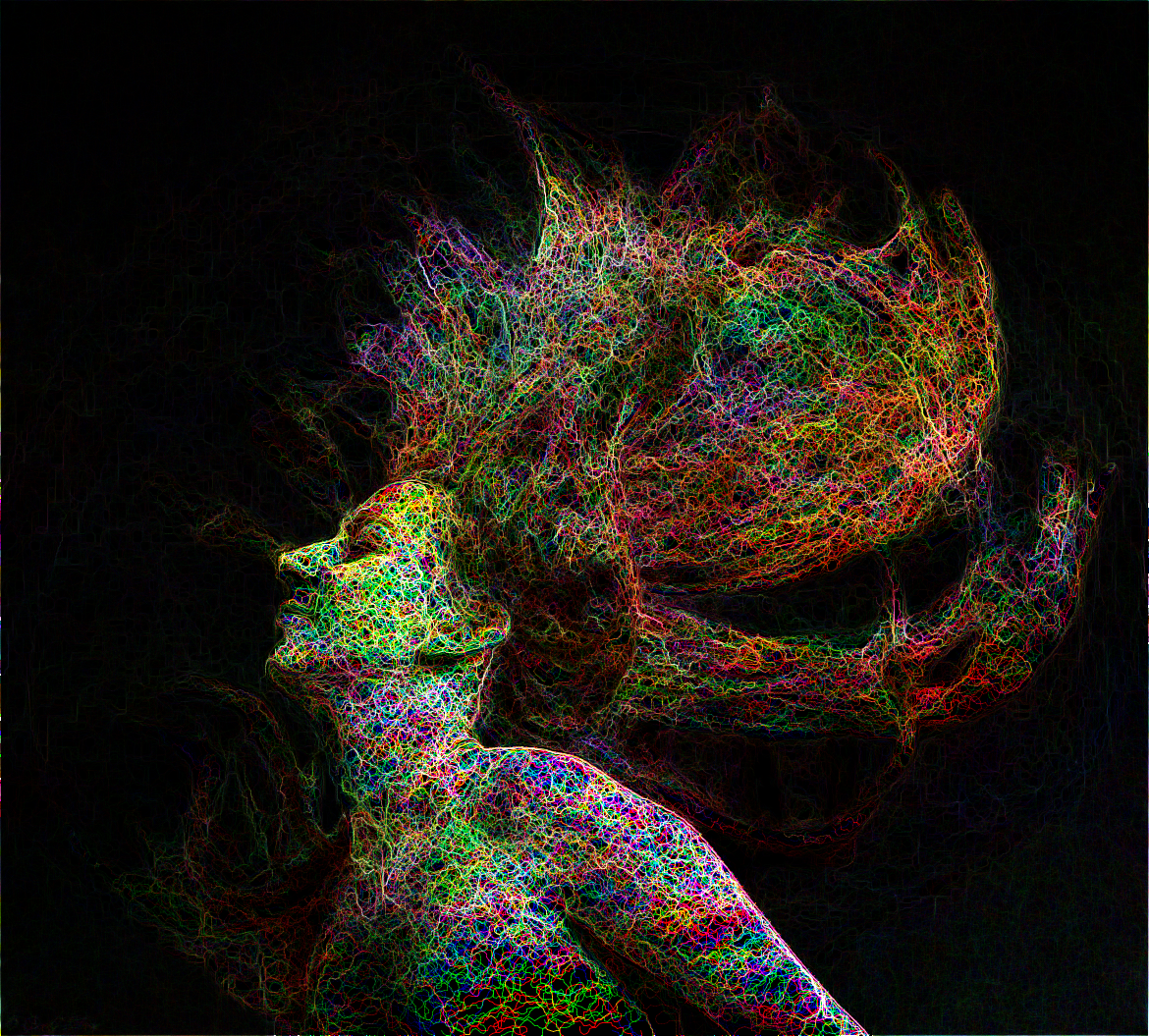
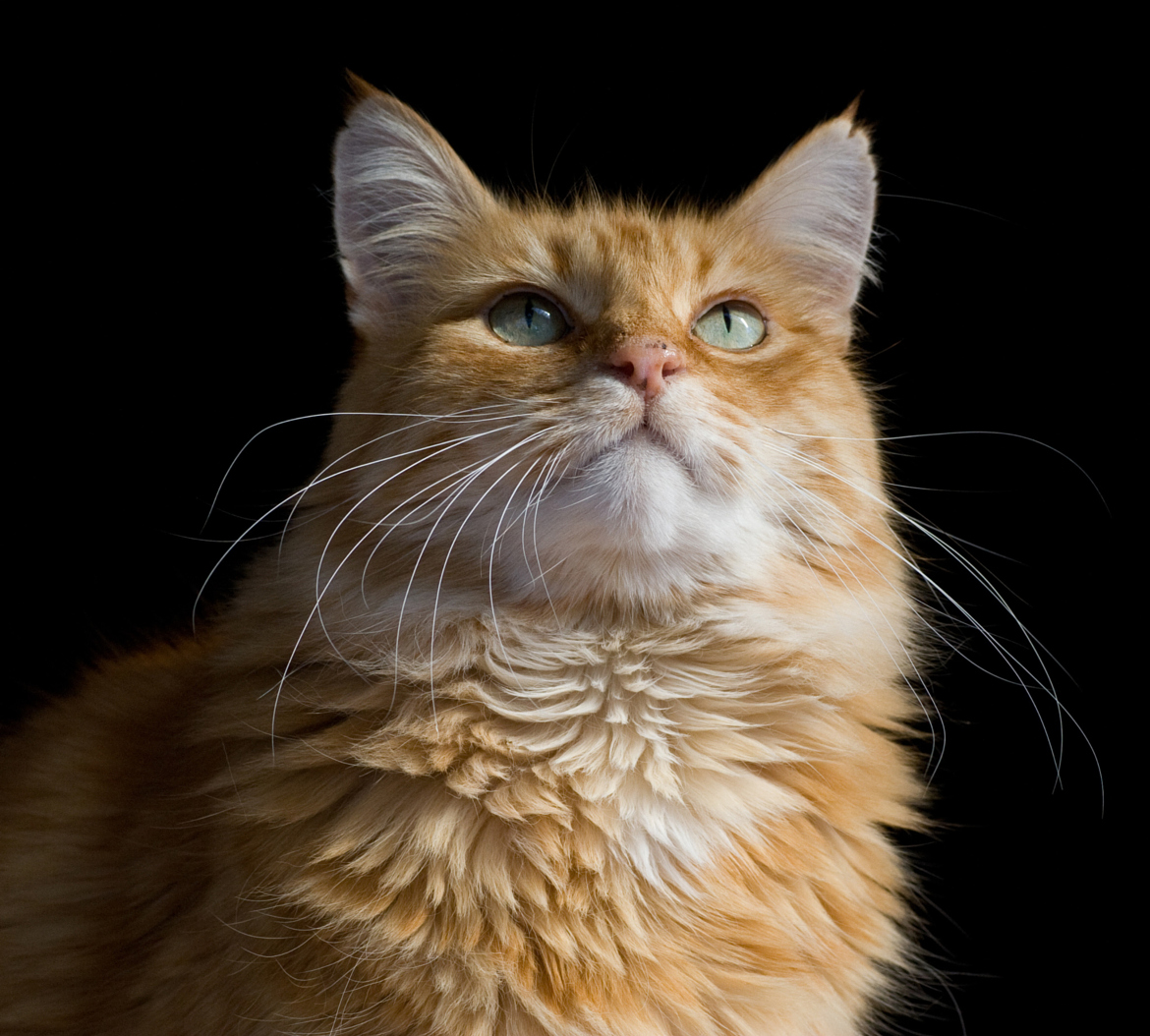
Below are some images I have processed. They should give you some idea of what the program does. These are not presented as world class prize winners, but as samples to illustrate different styles of image that can be produced. These are “image compare” graphics. Drag the blind to the left to see the processed image, drag it right to see the original image.

Lines mode. Image a composite of several runs, taking the best bits of each.
Lines mode with lots of Chromatic Pens
Circles mode
Longer Step Length with large Direction Range gives a frizzy look

The Algorithms

The program draws lines or circles. The lines wander about the canvas, using the underlying colour of the image. The motion of the pen is governed by random numbers, with some rules. The program chooses several random new locations to move to, depending on the Direction Range parameter and Line Step Length. The program chooses the random destination that closest matches the brightness at the current location. Thus the program tends to wander along lines in the image where brightness is similar. Choosing a large Samples selecting direction parameter reinforces this matching of brightness, whilst a low Samples selecting direction will give more random movement.

How to use the program

You can access the program at this URL https://resources.waverleycameraclub.org/doodle/.

General comments on the program

This program is still undergoing development, so the instructions below may not be identical to what you see running the program. I may have added new controls, for example, and not yet got around to updating the documentation below.
if you encounter any glitches, please let me know, so I can debug and fix (contact link is on the opening screen).

I have tested it under windows 10 using Firefox, Chrome, Opera and Edge; on android with Firefox and Chrome; and on an ancient Macbook Air using Firefox (but the page would not load using Safari). If you have problems, first of all, try using a different browser.
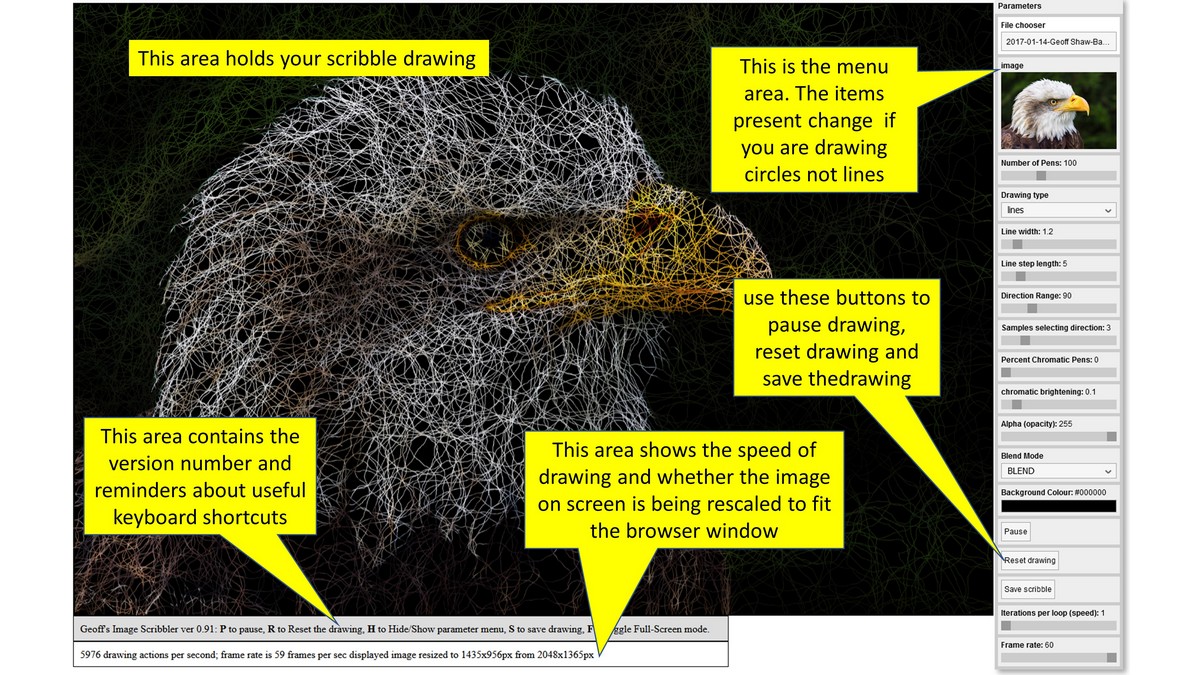
The program main screen (annotated) in line-drawing mode.

This program allows you to experiment with your images. Not every image will work well with the program. The parameter settings can dramatically affect how the image develops. You can change the parameters at any time. Once you have loaded an image, you can click the Reset drawing button (or R on the keyboard) to clear the screen and continue drawing on a new background. I suggest you load an image, see what happens with default setting. Press P to pause (or resume) if you want to stop and have a close look. Some of the settings allow you to slow down or speed up the drawing. Tweak the settings, see what the effect is. If you find a pattern of drawing that you like try a refresh to clear the previous lines and start with those settings on a blank canvas. Since the code uses random numbers in interaction with the underlying image to direct the patterns, you will get a different pattern every time. Sometimes you may get one part of the image looking good but other parts not so good. You can save that image (press S to save), then restart the drawing, perhaps with different settings… save again. Perhaps you can composite multiple images to show the best bits from a series of trials. Another thing might be to modify the image before loading it – change the colours, perhaps, blur the image perhaps, apply an edge filter (the next version will probably have some options along this line built in).

Program Controls

The program uses javascript to do the processing, so your browser does all the computing. Some browsers may handle the script differently. I developed this using Firefox ver 92.0 on a Windows 10 machine. The script should work much the same on other browsers and with different operating systems, but if you encounter a glitch, let me know.

The main menus and functions

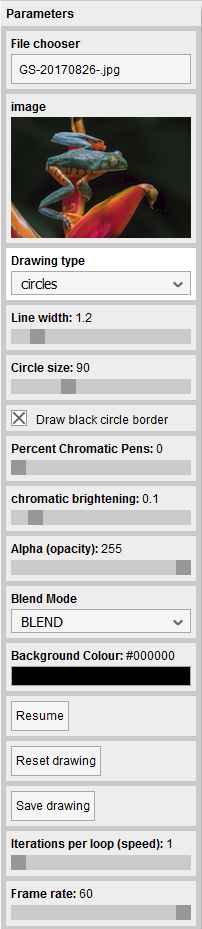
The program starts with the main parameter menu (see image right – there may be some changes as I develop the program) towards the right of your browser window. You can grab the menu title and drag the menu to a different place on your screen if you want.

You can set parameters before loading an image, or load an image and change parameters after. Use the File Chooser menu item to load a file. The menu changes to show the image thumbnail. If you choose drawing-type circles the menu changes to show the circle drawing parameters (screen grab far right).

Feel free to change the parameters to see what effects they have on the drawing. You can pause (or resume) the drawing by pressing P. To save a drawing as a PNG file press S or click the Save drawing button. You can reset the drawing to a blank canvas of the set Background Colour by pressing R or clicking the Reset Drawing button. You can also change the parameters whilst drawing is going on, to alter how the image rendering progresses.

Saving Images

Pressing S or clicking the Save drawing button opens a file save dialog. If you are drawing at the time, the drawing will be paused (you can resume by pressing P after the save). The filename suggested includes the original filename, the date and time YYYY-MM-DD_HH.MM.SS followed by a condensed list of the parameters set for that drawing – this may help if you want to use the same parameters again

  • see next para for an example of a file name
  • I may get around to adding code to save settings for reuse in a later version
  • you are free to change the name to whatever you want in the file save dialog box.

If you set parameters then load a new image, the parameters are not reset. If you reload the page, the parameters on the menu are set to default values.

yourFileName-_2021-11-08_08.53.14_np100circles_lw1.2_sl5_dr90_ns3_
cs90_cbtrue_pc0_ca0.1_al255_bm_BLEND_bg_0,0,0_it1.png

Explanation of the parameters and what they do.

The table below lists the parameters that you can change, and gives a rough explanation of what they do, but since random functions are involved, these are only a rough outline of the sorts of things you may see as the drawing develops. Feel free to change the parameters as the image develops. You can change the drawing to see how the lines move; reset the drawing to restart from a blank background, save a sequence of images as the drawing develops … so have a play.

ParameterInstructions
File chooserShould open an Open File dialog, allowing you to load a file to work on (.jpg, .png, .gif file types only). A thumbnail of the image is shown in the Image panel. Drawing starts immediately an image is loaded unless you have put the drawing into Pause mode (in which case click the Resume button or press P to restart drawing.
Number of PensWhen drawing lines, this determines how many lines are drawn simultaneously. More pens may increase the speed at which the drawing is rendered. A small number of pens may mean the drawing occurs only in a few small patches. The pens are initialised to random locations and directions whenever an image is loaded or the drawing is Reset.
Drawing typeThe default is to draw lines, but you can also draw circles (see below)
LinesThis mode draws squiggly lines (depending on the settings), controlled by the parameters below and a set of random numbers generated by the program. You can repeatedly draw an image with the same settings with the same start image, and the result will be different every time. Some bits might come out better in some versions than others, so you can always combine several variations using masks etc to make a composite with the best of each of the drawings.
Line WidthLine thickness in pixels.
Line step lengthDetermines how far the next points are from the last point in each cycle of drawing. A small number will produce reasonably smooth lines. Choosing a large number will produce more polygonal lines as the program draws straight lines between points. If you choose a large Direction Range with a large step length you will get a hairy looking image.
Direction rangeWith a small direction range the next step will generally be along the line of the past segment so you get fairly straight lines. With increasing values in this setting you will get increasingly twisty lines.
Samples selecting directionThis works together with Direction range. A random number determines the location of the next point in the past direction plus or minus a random change in direction (Direction range). This random selection is repeated Samples selecting direction times, and the best match to the brightness of the preceding point is chosen for the next point. If this setting is 1, the move is entirely random. If you choose a large number, there will be many possible directions to select from, so the line will tend to follow brightness contours more closely.
Percent chromatic pensThe default draws a line from a point using the colour of the loaded image at that x,y coordinate. If you increase this setting you will get increasing numbers of pens that use just the red, green or blue channel of that colour to set the line colour.
chromatic brighteningThe single channel “chromatic” pens tend to be a little darker overall than the original colour (they lost the brightness of two of the channels). This setting will increase the brightness of these single colour channel pens. Chromatic brightess of 1 will leave each of the colour pens at full brighness, rather than the brightness of the original spot, which doesn’t make a nice image.
Alpha (opacity)This sets the alpha channel for the line drawn. Alpha of 255 is an opaque pen; 0 will make a transparent pen (not much use). Values in between will give partial transparency which can be interesting. This setting also applies to the background when it is drawn. If you want a transparent background (eg if you want to composite your doodle drawing with other images), set Alpha to zero, reset your drawing (or reload the image) to overwrite the canvas with a fully transparent background, then move the Alpha up to see the lines/circles as they are drawn over this transparent background. Note that your browser will probably show a white background (cannot make your screen transparent), but when you save the doodle drawing, the PNG output file will have a transparent background.
Note there are some glitches with alpha – things may not turn out as you expect because the underlying graphics package has an issue with antialiasing that ignores the alpha setting.
Blend ModeThis drop down offers a range of blend modes to be used when drawing. These are similar to the ones you find in Photoshop or other layered image processing software. The default BLEND overlies each line over any preceding lines it crosses. Play with it to see what effects you get.
Background colourThis opens a colour picker. Depending on the blend mode, you will overwrite the existing drawing (BLEND) or mix with them in other ways. If the colour picker is open, you cannot change any other settings, so close it after setting colour.
PauseThis button will pause the drawing. When paused the label changes to Resume, so you can resume drawing again. You can also use P or p on the keyboard.
Reset DrawingThis button causes the drawing to be overwritten by the background colour.
Iterations per loop (speed)Depending on the size of your image and the speed of your computer and the speed of your browser’s javascript processing, increasing this setting might increase drawing speed. If it is set too large, your drawing will get progressively more jerky in progress. This control is most of use with the Circle drawing mode.
Frame rateBy default, the program will draw 60 frames per second. If you need to slow down the speed of drawing, you can reduce the frame rate down as far as 1 frame a second. In circles drawing mode, each frame draws one circle per “iteration”, so if you increase iterations per loop you will also get faster drawing. In line drawing mode each frame will draw a line segment for each pen (number of pens) and will do this number of iterations per loop times for each frame. The drawing speed is also limited by the speed of your computer. A huge number of calculations occur for each drawing iteration. If you force too many calculations per drawing frame, the frame rate will fall and the program may seem jerky and unresponsive.
CirclesThis drawing mode draws circles rather than lines. In this case the circles are drawn at random positions across the whole image, selecting colour based on the corresponding colour in the original image (as per line colour in Line mode)
Line widthThickness of the circle border (black)
circle sizesize of the circle in pixels. Play with this as the drawing is rendered. Maybe start with large circles to cover the background with colour circles, then progressively shrink the circles to get progressively more definition from the original image
Draw black circle borderUse this check box to turn the drawing of borders off or on.
OTHER CONTROLSIn circle drawing mode the remaining controls work in the same way as in Line drawing mode
P on the keyboardToggles Pause / Resume for the drawing
S on the keyboardPauses the drawing and opens a save file dialog so you can save the current drawing. You can resume drawing after the file is saved by pressing P or clicking the Resume button.
NOTE: if you set your browser download settings to “Always ask you where to save files” the browser should remember the destination when you save successive drawing.
H on the keyboardHide. Toggles visibility of the parameter menu. Useful if you have a smaller screen and want to see the whole drawing as it develops without the menu covering part of your drawing (if you have a large screen you can move the menu (click and drag on the top) to place it beyond the drawing canvas.
Ctrl-scroll wheelBrowser/OS dependent – this alters the zoom level on the browser window. If your drawing is bigger than your screen, you can zoom out to fit more on the screen. However, the appearance of small features on the drawing may look different depending on the browser’s interpolation of the pixels to fit the zoom chosen. Also the menu will get smaller and harder to use.

Drawing Speed

The drawing speed is determined by the speed of your computer, the speed of the javascript processor in your browser, and a number of parameters in the drawing settings. If you want to slow down the drawing, the Frame Rate parameter is useful (see above). Normally the program draws at 60 frames per second. If the calculations and drawings take less than 1/60 sec, the program will wait the remaining time before starting the next frame. At low frame rates, the drawing may look a bit jerky. If you increase the Number of pens parameter then there will be more pens drawing in each cycle, so the drawing will run faster. Another way to speed up is to increase the Iterations per loop parameter. This will also speed up the drawing, though if you take it too far, the computer will be unable to complete all the calculations within the set frame-rate so the frame rate will start to fall and the program may start to get a little unresponsive (too busy to respond to you).

Beneath the drawing you will find an information panel with tells you how many drawing actions (line segments or circles) are drawn per second and the actual frame rate achieved.

Image scaling

If you load an image larger than the available space on the browser window, the on-screen drawing that you see will be re-sized to fit in the available window. This on-screen scaled image may show some artefacts due to the re-scaling – line widths may be affected, for example. However, when you save the drawing, you will get an output file the same size as the original input image that avoids these artefacts from the re-scaling for display.

The panel under the drawing gives details on the resizing.

Privacy considerations

This program is coded in javascript. Nothing is saved on the server. I do not explicitly post any cookies or save any images or settings. Your use of the web page will generate routine web access logs, just as any web page does.

Programming Credits

This program, coded in JavaScript by Geoff Shaw. You can contact me via the contact page of this site. My code uses the following free software building blocks:

I used the Processing development environment from the Processing foundation https://processingfoundation.org/ The javascript interface P5js has an LGPL-2.1 license. The P5.js web editor was a useful tool in prototyping and learning to code javascript and Processing.

The menu system is built using quicksettings.js which is released with the MIT license.

Posted in Advanced Edits, Artistic, beginner, compositing, How-to, Post-Processing, Software | 2 Comments

Triptych making in Photoshop and Lightroom

Geoff Shaw’s suggestions

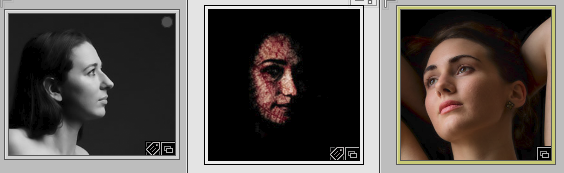
For some general comments on triptychs see HERE. This post will give a couple of approaches using Lightroom and using Photoshop. I use an example with the three images below (screen grab from my LR catalog).

Lightroom.

  • In Library view select the 3 images you want to make into a triptych. I suggest you put the 3 images into a collection. In grid view, drag the image thumbnails into the order you want in your triptych.
  • Select all 3 images.
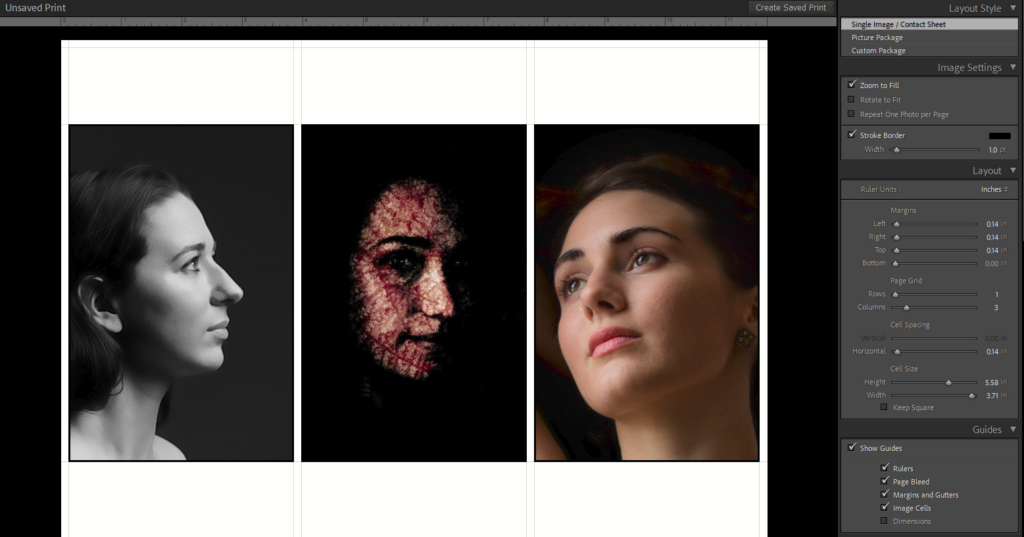
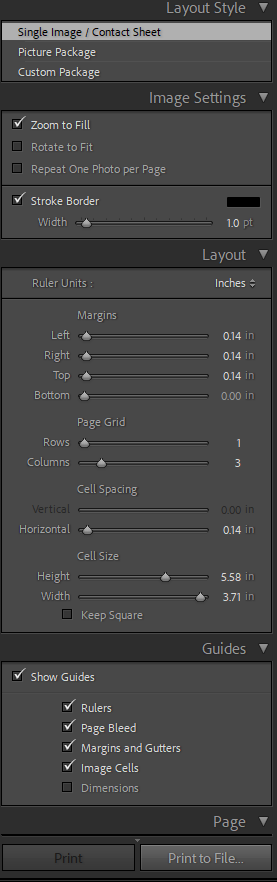
  • Switch to Print view. In the default mode it assumes you are printing to A4 paper. Let’s stick with that for now. The screen should look like this.
  • Adjust the settings in the Layout Style panel on the right of the screen.
  • For now, select Single image/Contact sheet.
  • Check down the page to the Page Grid setting and set for 1 row and 3 columns for your triptych.
  • In the Guides section, click Show Guides to see guides for the margins and cell spacing.
  • In Image Settings, click Zoom to Fill to get the images to fill the space (if the images are too large you will find not all the image shows).
  • Choose if you want each panel to have a border and set the colour and thickness (Stroke Border).
  • In Layout, set the left, right, top and bottom margins and the cell spacing (space between panels). As you change these values you will see the changes reflected in your layout.
  • If you need to reposition any of the images in the 3 panels just click and drag to move the image within the space available for it.
  • Once you are happy with the appearance, click the Print to File button at the bottom right. Select a destination file name and click Save.
  • Open your output file in Photoshop and use the usual tools to crop off any excess white space, and resize the pixel size to whatever is needed (eg 1920 x 1080 px max for WCC competitions).

If you want to make a triptych with uneven sized panels or more complex layouts, you can do this using the “Custom Package” option in the Layout Style panel.

  • In the Cells panel click Clear Layout
  • drag the thumbnails from the image filmstrip below onto the print area.
  • Drag the images to where you want them. Use the corners to resize to get them to the same height. (note. Click the Lock to Photo Aspect Ratio checkbox to make sure you don’t distort the images).
  • Print to file.
  • Open the output file and crop and resize as needed.

Photoshop

OK, if you are using Photoshop, you probably have a good idea what to do. Here are some brief suggestions.

  • Create a new empty image of the size you want.
  • Use the View>>New Guide Layout menu to open a dialog where you can set a layout with 1 row, 3 columns and a suitable spacing (gutter).
  • Drag the guides about until you have the guides reflecting the layout you want.
  • Drag the 3 images you want to use onto the canvas. They should be added as new smart layers.
  • Select each image in turn. Use the transform tool to resize and reposition each image within the frame made by the guide lines.
  • make a rectangular marquee in the area you want to be visible. If Snap to Grid is active, the marquee will match the guidelines.
  • Mask the layer.
  • Repeat the resize/reposition/mask for each of the other images.
  • If you want a stroke/shadow etc round each image frame, then you can apply these in the Blending Options for each image layer.

Further reading

There are always lots of different ways to do things… here are some other resources.

  • https://learndamophoto.com/blog/2017/12/28/making-triptychs-in-photoshop
  • https://petercripps.photography/2019/10/22/creating-a-triptych-in-photoshop/
Posted in Advanced Edits, Artistic, beginner, compositing, How-to, Post-Processing | Tagged , , , | Leave a comment

Feathering

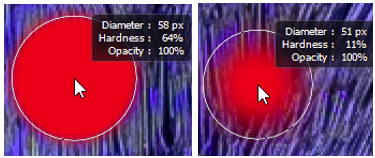
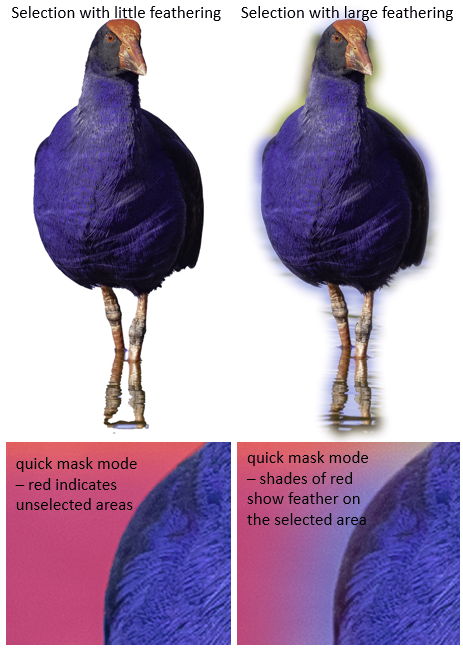
Feather. This does not refer to plumage of birds, but the fuzziness in a selection or mask or brush. If you will forgive the visual pun, the image right illustrates on the left panel a hard selection (low feathering) with sharp edges (zoomed in section at the bottom). In the right panel is a loose selection with large feathering, where the edges of the selection fade off into the background. Below is a comparison of a hard (low feathering) and soft (high feathering) brush .

Posted in Basic Edits, beginner, compositing, glossary, Post-Processing, Software | Tagged , , , | Leave a comment

Pixel

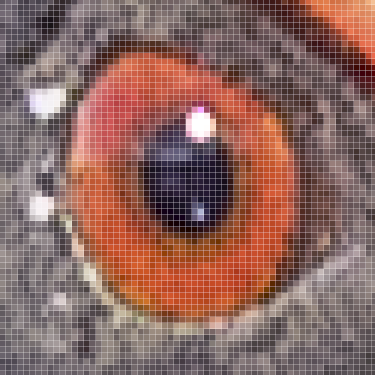
In this enlarged section you can see the individual pixels that make up the eye of a bird

Pixel. pixels are the basic elements of images. Each pixel is a point in the image and has associated values for the brightness of the colours that make up that pixel (Red,Green,Blue or RGB). Black is (0,0,0) ie no brightness in red, green or blue. White is (255,255,255) ie full brightness in red, green and blue. A mid red pixel might be (128, 0,0) ie partial brightness of red and no green or blue. Bright yellow is (255,255,0) ie equal amounts of red and green, and no blue at all. It’s a bit like mixing paint colours. Each image may be thousands of pixels high and thousands wide. For example an Olympus OMD-EM1 makes images 4608 pixels wide and 3456 pixels high.

Posted in Basic Edits, beginner, glossary, Post-Processing | Tagged | Leave a comment

Audio-Visual (AV) presentations

Page in development

Why make an AV?

Audiovisual presentation can add extra dimensions to your creativity. In standard photography you pick your crème de la crème image that has to convey its message in splendid, silent isolation. With an AV you can sequence images to support a narrative. You can add movement to help guide the viewer’s eye across the image. You can add sound to control the viewer’s mood and emotional attachment, or to evoke memories and thoughts that support your narrative. What is more, you can do this with only a little effort, and even using software you probably already have (though specialist software – free or commercial – may make some tasks easier).

I first came across AV presentations back in 1960, when Olegas Truchanas and Ralph Hope-Johnstone presented their audio-visual slideshows bringing the stunning beauty of Lake Pedder (the real Lake Pedder, not the impoundment we now have) to the public.They presented time and time again over almost 3 years to packed audiences at the Hobart Town Hall. They didn’t prevent the hydro scheme that flooded Lake Pedder, but they helped found an environment movement that has only snowballed over time.

Back then the technology was quite cumbersome and out of reach for most. Their system used with two commercial grade slide projectors on custom built stands to allow them to be carefully aligned to match on the screen, and a box of electronic wizardry that allowed them to do synchronised fade transitions between the two slide projectors, and coupled with an sound system playing the background audio. Now, with computers and digital projection it is so much easier. Making your own AV presentations is in easy reach.

Tell a story

If you are going to make an AV, it’s a good idea to think about what you want to achieve. Just putting in a jumble of disconnected images is much less powerful than a carefully curated set of images that have coherence, that tell a story. So think about what you want to convey. Hunt for images that will help build the narrative. They don’t all need to be world-class – the storyline is the important thing. And think about what audio support you will need. Choose audio that complements rather than clashes with your narrative.

Software features

Transitions

Choose transitions – the period as the images change – carefully. Simple is often best. Cross fades generally work well, with fade to/from black good as “paragraph breaks” between distinct sections of a slideshow. The transitions should be sympathetic to the narrative you are building. A brutalist industrial theme might benefit from quick transitions; a slideshow of mothers and newborns might benefit from slow transitions. Too many different sorts of transition may make your audience focus more on the transitions than on the images or the narrative.

Timing

Show each image for long enough for the viewer to see and understand the image. Choose timing to graphically complement your images and narrative. It is often easiest to use a set timing – say 5 seconds, for each image, but that may not be optimal. Some parts of the narrative might warrant a quick series of images; other parts might suit a more leisurely timing. Think about the timing in concert with the audio track. A slow, lyrical passage of music may not fit with a fast and frenzied burst of images.

Music

Music has extraordinary power. It captures the emotions. It evokes memories. It is a valuable part of the AV. Even if you have spoken narration accompanying your images, blending the spoken word with complementary music can be very powerful. See more under the Audio heading.

Ken Burns effect (Pan and zoom)

This effect is achieved by panning and zooming over static photos to give a sense of dynamism. Ken Burns made the technique famous through his use in his fabulous documentaries, but the approach was used before him (look up rostrum camera effect). You can use the effect just for a sense of motion, or, by carefully setting the path of the pan/zoom, and any pauses in movement, you can direct the viewer’s attention to a particular part of an image (or maybe several parts). This is a powerful technique used well. Note that if you pan or zoom too fast the end result may be jerky, unsatisfactory video output, or your viewers may not be able to focus as things whizz past.

Export to video

Most software gives options for output in various resolutions, frame rates, compression rates and file formats. This is an incredibly complex area. If you need more, search the web for assistance, or ask a friend who is skilled in the area (if you have such a friend).

Images / Video clips

You needn’t be confined to photographic images. You can blend in video clips too. These may be great for catching things that static photos may not convey in the same way. Think waterfalls, windsurfers, racing cars, or children playing, and so on.

Audio

The audio is a vital component. It can narrate the story. It can set the mood. It can punctuate the presentation.

Narration can be challenging. Speak slowly and clearly. Record in a quiet place to avoid other sounds. Think about the acoustics of the place – is it resonant (may work if your subject is about cathedrals etc, but generally not the best); are there echos? Have a script to read so you don’t stumble on your words. Do it in bits and combine the audio segments later – easier then to synchronise the narration with the flow of images

Natural/ambient sounds – appropriate to the subject. Bush sounds for bushland scenes; steam train noises for that steam train adventure… Even simple phone recordings can be effective, though with more sophisticated recording equipment you will have greater success. Directional microphones can reduce unwanted background noises; fuzzy covers on microphones cut out wind noise etc. Try to avoid extraneous sounds. That beautiful birdsong audio clip will be less effective if there is background traffic noise, for example..

Music. Huge diversity of music. Pay attention to copyright issues if you intend to show the AV beyond private settings. There are lots of resources for a great diversity of music that is available under Creative Commons and similar licenses that you can generally use so long as you appropriately cite the source. https://creativecommons.org/about/program-areas/arts-culture/arts-culture-resources/legalmusicforvideos/

Software – Free

Here are some of the available software – this is not an exhaustive list. I have tried some of these, but not all. The order of presentation here is in arbitrary order. Since they are free, you can try and see which suit your needs without any expense.

4K Slideshow Maker https://www.4kdownload.com/products/product-slideshowmaker Create slideshows with music, different effects, and presets with a simple user interface.

PhotoFilmStrip (https://www.photofilmstrip.org/en/) PhotoFilmStrip is a simple tool that lets you create videos with your photos without any prior video editing knowledge. You can arrange your images along a timeline, with customisable durations and transitions. Pan and zoom effects are simply handled. Audio is a bit primitive – you can add a single audio-track (you will have to use a program like audacity if you want to combine audio tracks), and there is no audio-line along which you can synchronise images and transitions. The program provides output in various formats and resolutions.

NCH PhotoStage https://www.nchsoftware.com/slideshow/index.html This is a reasonably sophisticated application that is available for free for non-commercial use. You can drag and drop your media into the program, arrange images along a timeline, adjust durations and transitions, animate with pan and zoom and so on. On the audio track you can set fades and other simple edits. Output to a range of formats and qualities of video is available.

Shotcut https://www.shotcut.org/ An amazing multi-track video editor. Very steep learning curve, but incredibly powerful. Similar to Adobe Premier but without the price tag. Although designed to edit videos, it handles slideshows easily, and has a wealth of features and filters to dynamically modify the images. If you are planning on doing a lot of slideshows, this program is definitely worth the effort to learn. There are extensive tutorials and learning resources on the shotcut website. And here is a quick overview of shotcut for creating slideshows: https://www.organizingphotos.net/video-slideshow-tutorial-shotcut/

Slideshow creator https://sourceforge.net/projects/slcreator/ Slideshow creator is a GUI to create, modify and preview jpg (jpeg) images slideshows to be later finalized with dvd-slideshow. Effects like crop, kenburns and scroll etc.

MiniTool MovieMaker MiniTool MovieMaker | Easy-to-Use Free MovieMaker Software

Adobe Spark – free online slideshow maker https://www.adobe.com/express/create/video/slideshow. The free version has significant limitations. You can get the full Spark package via Adobe creative cloud if you have the right subscription.

Audacity Audacity ® | Free, open source, cross-platform audio software for multi-track recording and editing. (audacityteam.org) This is a fabulous multi-track audio editor with lots of bells and whistles. The package comes with excellent documentation, and there are lots of tutorials on the web if you search.

Software – Commercial

Photopia (replaced ProShow Gold).

PTE AV Studio (formerly PicturesToExe) https://www.wnsoft.com/en/pte-av-studio/

Ashampoo Slideshow https://www.ashampoo.com/en-us/slideshow

Powerpoint — not designed for this purpose, but you can do a good job with tools you probably already have and know how to use. You can set up a slideshow with customisable slide durations, various transition between slides, add animations (eg pan and zoom), add audio, and output to video.

Adobe Premier high powered video editing package. very steep learning curve. Expensive.

Adobe Spark is part of the creative cloud suite.

etc etc etc

Posted in Audio-Visual | Tagged , , | Leave a comment

Exposure X6

Overview

Image from https://www.lifeafterphotoshop.com/exposure-x6-review/

I haven’t used Exposure hands-on so the following comments are based on the Exposure website documentation (there is an extensive set of tutorials and videos) and reviews I found on the web. Exposure X6 is very similar to Lightroom in its user interface. It provides file management/Digital Asset Management tools including metadata editing, virtual copies and virtual collections. It has a comprehensive RAW editing workflow with non-destructive editing pathways (similar to LR). Unlike LR it supports layered images with blend modes, masks, opacity etc. so you can make composite images, or apply filters to layer copies for more flexible editing. The user interface is customisable so you can move or hide different editing panels to suit your personal workflow. You can also use Exposure X6 as a plugin to Lightroom and Photoshop.

Note that Exposure X7 is “Coming soon” at the time I write this (august 2021), which they tout to contain new masking tools, new workspaces and improved image quality.

Reviews and Resources

Posted in Software | Tagged | Leave a comment

Capture One

Overview

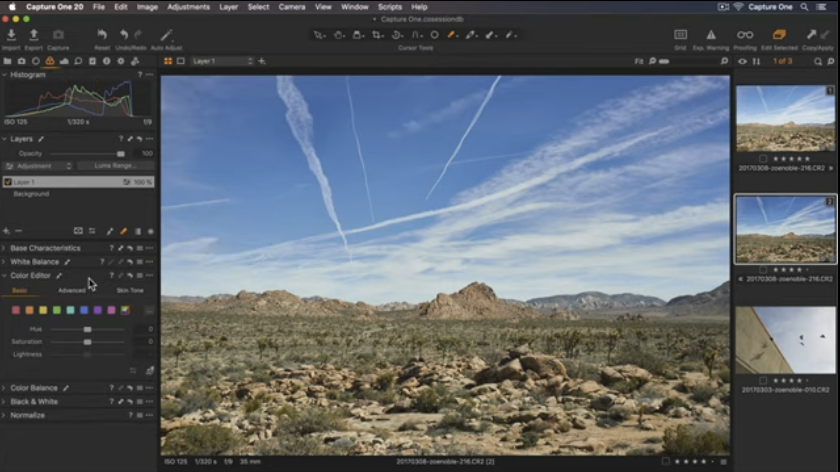
Capture One started life as software to support Phase One’s high-end digital cameras, in particular in tethered image capture situations, but is now available for most makes. It is a superb professional Raw image processor. It is feature rich, with a layered image processing model. It has image management/cataloging functions, though not as good as Lightroom’s. One comparison of Catpure One and Lightroom is HERE and reviews are HERE and HERE. Capture One is available on a monthly subscription model and is more expensive than LR/PS, but there are cheaper or even free options if you use Sony or Fujifilm cameras.Fujifilm cameras.

Screen grab from one of Capture One’s tutorial videos

Further Reviews and Resources

Posted in Software | Tagged | Leave a comment

Some useful training videos

Below are some miscellaneous training videos that look to me to be worth viewing.

Beginner level

More advanced level

videos to be added as I come across candidates.

Posted in beginner, composition, mistakes | Tagged , , , , | Leave a comment

RawTherapee

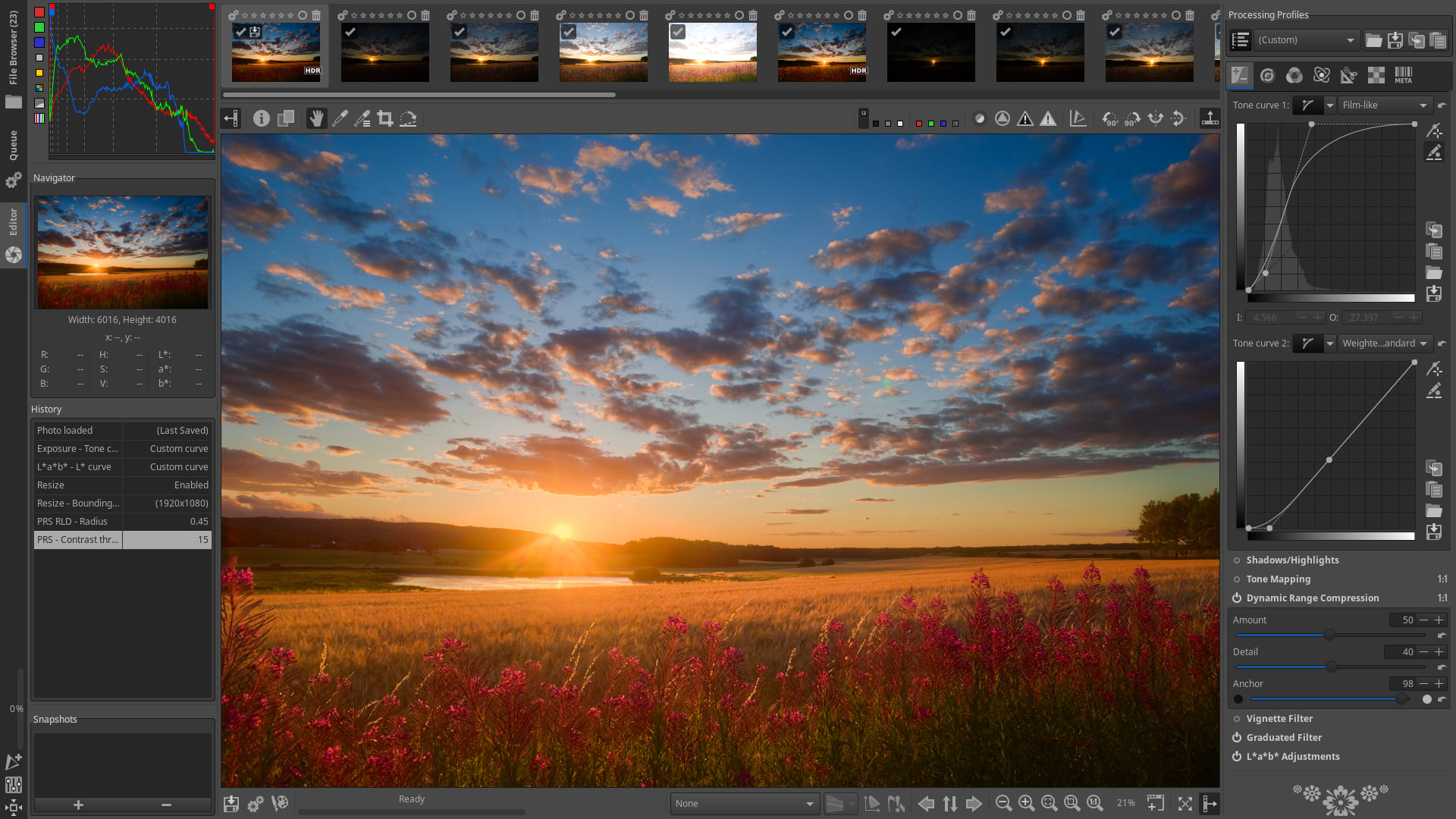
RawTherapee is a richly featured RAW file editor with versions for Windows, Mac and Linux. It is free, open-source software.

RawTherapee is a powerful, cross-platform raw photo processing system, released as Free Software (GPLv3). It is designed for developing raw files from a broad range of digital cameras and targeted at users ranging from enthusiast newcomers who wish to broaden their understanding of how digital imaging works to professional photographers.

RawTherapee provides a powerful suite of tools for you to produce amazing photos and showcase your creativity.

RawTherapee benefits users who take the time to learn what it can do. Luckily the community is quite welcoming and helpful! Check out the Forum, read up on RawPedia, and ask questions – there’s always something neat to learn! 🙂

RawTherapee is Free and Open Source software. This means you can use it free of charge, wherever you like and however you like as long as you abide by the copyleft GPLv3 license.

https://rawtherapee.com/

It boasts high image quality, and support for a huge range of RAW formats, and documentation and an active support forum.

First slide
RawTherapee screen shot from https://rawtherapee.com/
Posted in Uncategorized | Leave a comment

Photopea – a free photoshop-like editor

Use it at https://www.photopea.com/ .

This is an amazing project from a talented Czech Programer Ivan Kutskir. It comprises over 100,000 lines of code! This is an online program that you can run in your browser, with a photoshop-like interface with all the things you would expect. It doesn’t have all the bells and whistles. It works with some RAW formats though the raw processing is fairly basic – you get basic exposure adjustments then it converts to a PSD file that you can edit. However if you want, you could always use one of the more capable RAW converters (RawTherapee, DarkTable, or even Adobe Camera Raw (yes you can download that for free)). It features layers, blending modes, lots of filters, selection tools…. All for free (well almost. You “pay” by having a set of adverts flashing on the right hand side of the page – there is a paid option that removes the adverts).

If you use Chrome browser (or similar) you can “install” Photopea as an App so you can run it entirely from your computer without an internet connection. (I guess if you then turn off your internet, you can edit your photos without adverts popping up).

Here is one person’s review https://fixthephoto.com/photopea-review.html and another https://irvkrick.com/photopea-review-a-free-photoshop-alternative-that-works-in-your-browser/

Posted in Post-Processing, Software | Tagged , | Leave a comment